Category: Office 365

Creating Videos for D2L Purposes

Method 1: D2L Media Library

You can create directly in the media library, then place video in a course.

Access your Media Library by:

  • Click on the settings cog wheel at the top right of your D2L homepage:
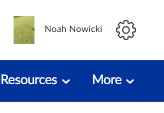
    • Find the Media Library option:

Select the Add Assets option, there you can either record video, record audio, or upload a pre-existing video file that will be placed into the Media Library.
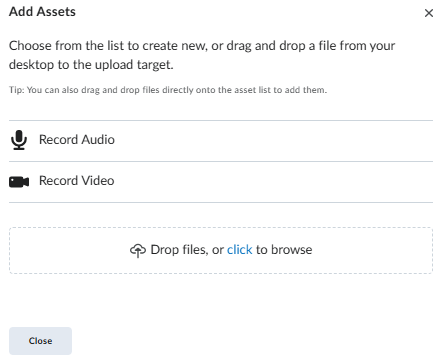
Another way to add video is to add a new module in your course or select an already designed module within your course and add a video note.

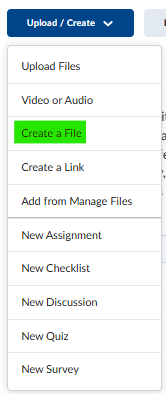
Click on the desired module and then click on the Upload/Create: Create a file
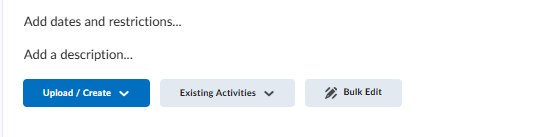
Inside the text box there is an ‘INSERT STUFF’ icon as shown below. By selecting this icon the menu will show a Video Note selection, click on Video Note.

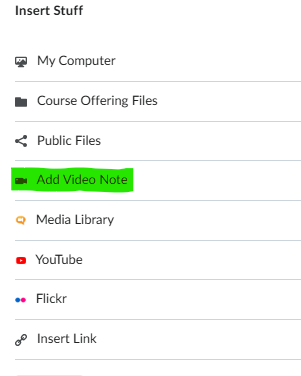
Please note the video recording in this mode has a 30 minute time limit.

Method 2: Use a Teams Meeting to Record Video

Log in to office.com and go to the Teams app

Go to the Calendar and set up a new meeting:
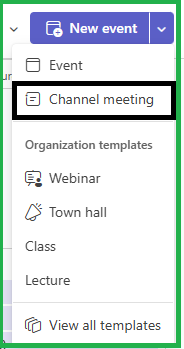
After you fill out the requirements for the meeting it will show up on your Teams Calendar. Double Click on the meeting and select Join the meeting now.
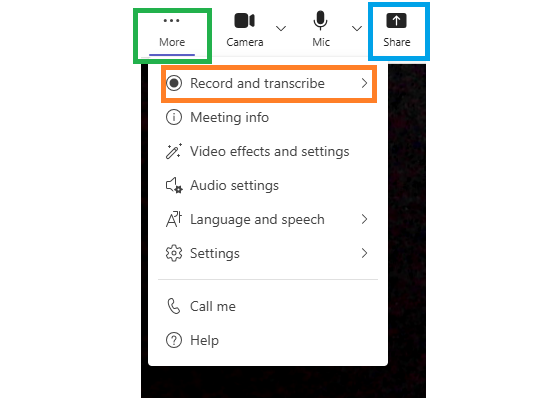
Share your Screen as you talk through your video recording

1- More

2- Record

3- Share

When you are finished stop recording, then just leave the meeting.

Now it is time to find your recorded video, it is only a few small steps.

  • Log in to office.com
  • Find where your apps are listed.
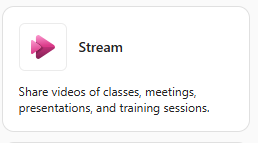
  • Look for the STREAM APP
  • Your Teams recording will be in this application, in MP4 format.
  • Select Download

Go into D2L an upload the video file.

  • Select the module where you want to upload the video.
  • Select Upload/Create option and select Video or Audio.
  • Select Upload and browse to the Teams video file.

NOTE: Make sure you know where your video files or any files for that matter go when you save them on your device. [EX: Downloads folder, pictures folder, etc.]

Method 3: Clipchamp

Clipchamp is an advanced video editing tool that is part of Office.com
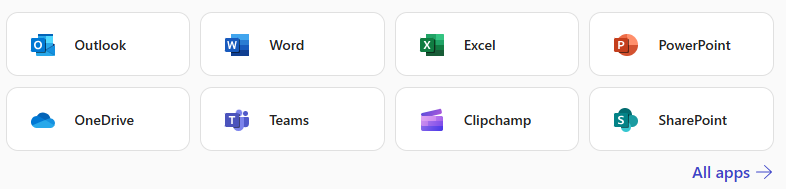
Take a look at the Clipchamp web site to learn more about online recording tools.

https://clipchamp.com

Creating a Breakout Room on Teams

Microsoft Teams allows the user to create breakout rooms within the meeting. Follow these simple steps below to create the breakout room:

  • Enter the Teams Meeting that you have set up and Select Rooms
Selection of Teams Rooms
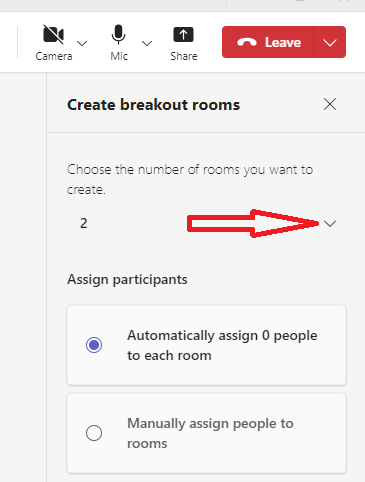
  • Choose the number of rooms you want to create drop down: this example is 2
Breakout Rooms Picture
  • Then under the Assign Participants option box:
  • Select Automatically assign people to each room for random groups
  • Select Manually assign people to room for familiarity
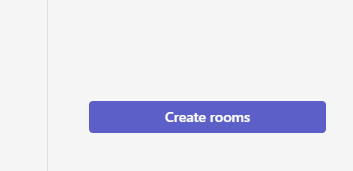
  • Click on the ‘Create Rooms’ tab and the breakout rooms are all set
Create Room option button
Click on Create Rooms for Breakout Rooms in Meeting

Using Microsoft Bookings to Schedule Virtual and On-Campus Office Hours

Online appointment scheduling is here! You can now allow students to schedule office hours with you with just a click of a link. All meetings will appear on your Outlook calendar. If you choose to meet with students virtually, a Microsoft Teams meeting link will be created and sent automatically to the student on your behalf.


STEP 1

Login at Office.com using your SSC username, and network password.


STEP 2

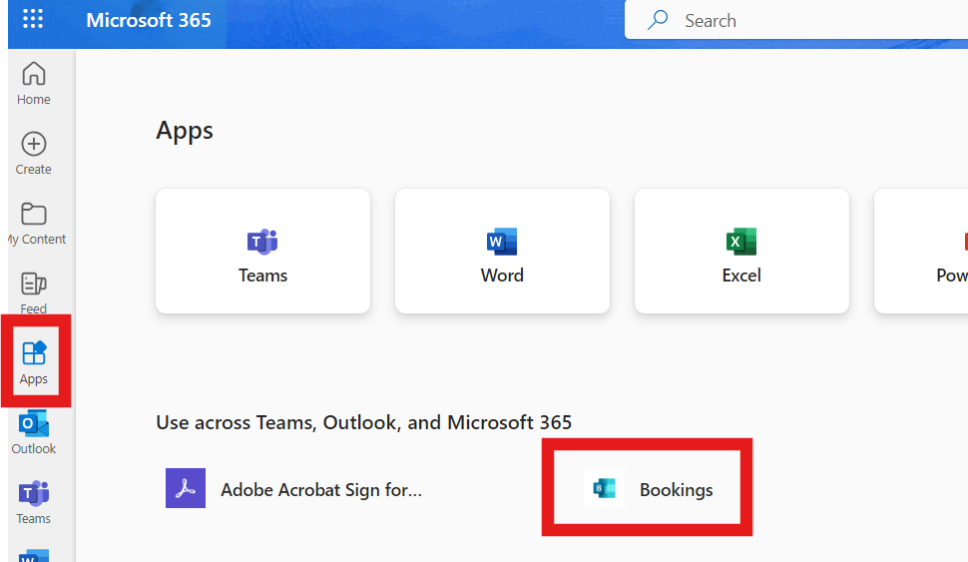
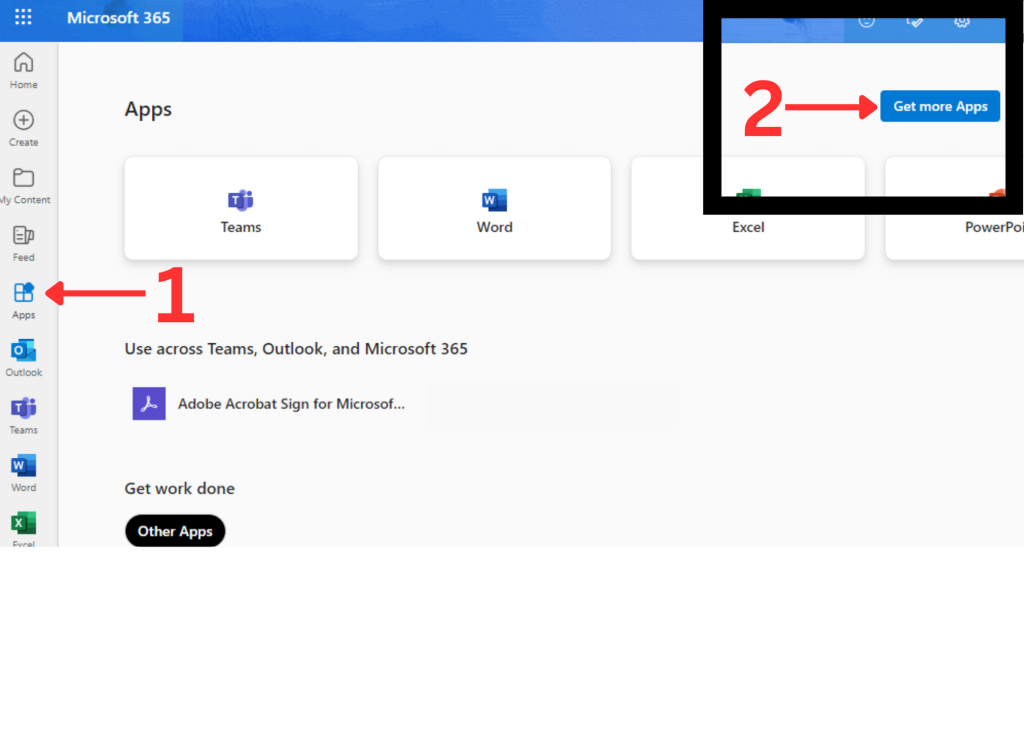
Select the “Apps” icon from the navigation bar on the left. If “Bookings” is listed on your Microsoft 365 Apps page, click to open and proceed to STEP 5 of this guide.

Bookings listed on Microsoft 365 App Screen

STEP 3

Click on the Apps link from the left menu, and navigate to the “Get More Apps” in the upper right-hand corner of your browser window on a desktop or laptop.


STEP 4

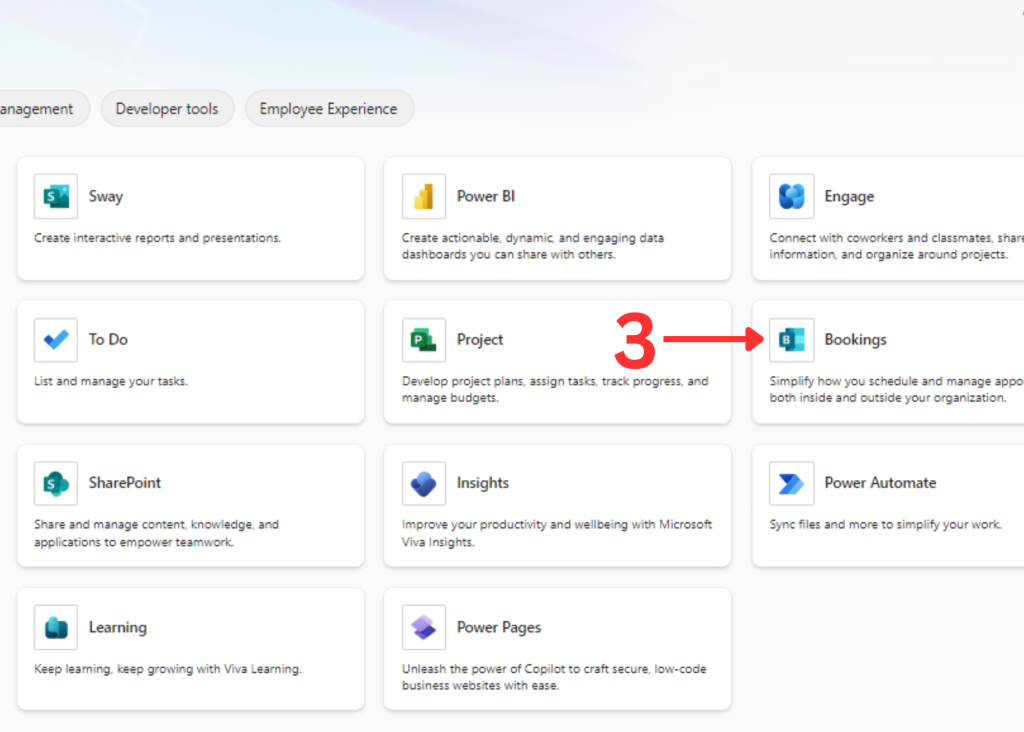
On the next screen, click on the “Bookings” app to add it to Office 365.


STEP 5

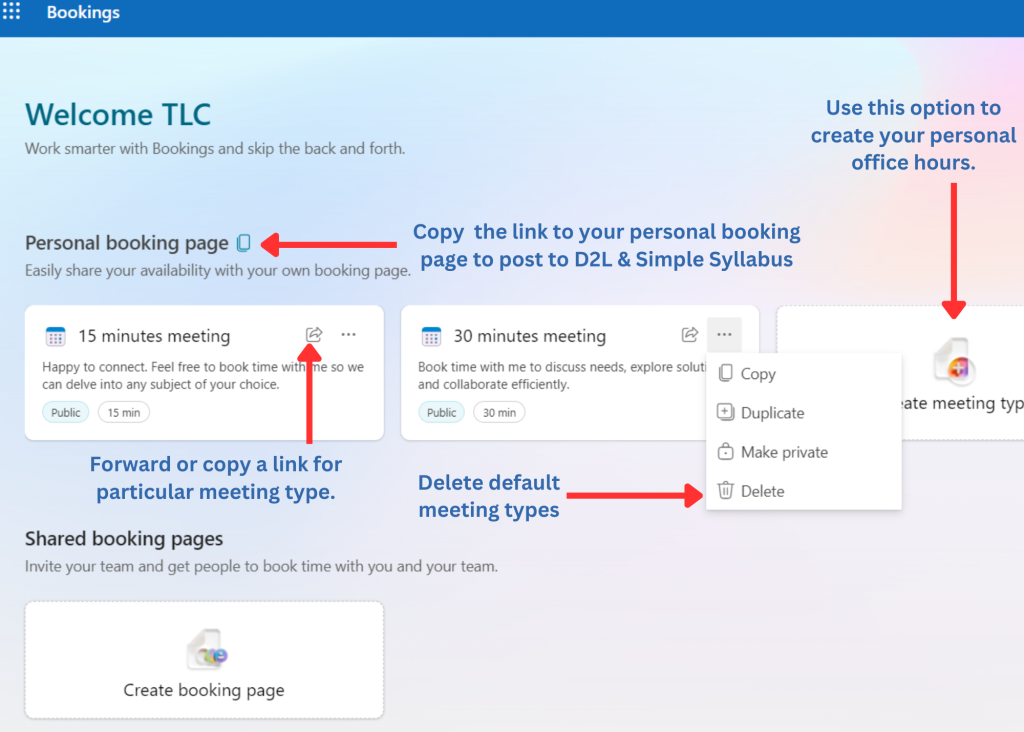
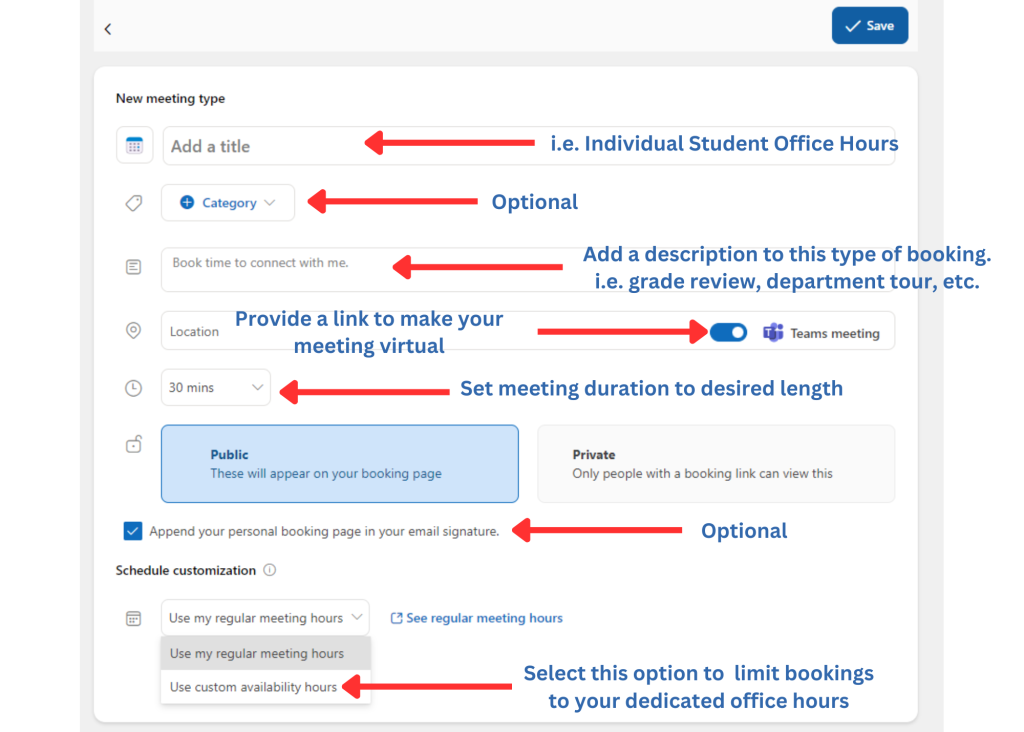
Follow the prompts on the images below to create a new meeting type.

Be sure to copy the link to your “Personal Booking Page” or the unique meeting you created especially for your students and add it to your D2L course shells and Simple Syllabus so that they can easily book virtual office hours with you online.


STEP 6

You can restrict the ability of your schedule to just your posted office hours by setting “custom availability hours” for the meeting type you wish to share.


Need help more help? Email us at ssconline@ssc.edu.

Office 365 – Outlook and Teams

MISSED OUR LIVE TRAINING SESSION?

WATCH A REPLAY (SSC Username and Network Password Required)

How to Login and Access:

  • Visit: https://office.com
  • Username: Type in your complete SSC email address
  • Password is your same single sign-on (same as you use for D2L, etc.)
    • Multi-factor authentication is required (if you haven’t set this up already, view setup)

Outlook (email and calendar)

Teams

Need Help?

  • Email the Teaching and Learning Center at ssconline@ssc.edu