SSC maintains one academic year of courses materials on the Learning Management System (D2L), with all other content being moved to an external archive. Archived course content will be retained for an additional four years (five years total). (Effective January 1, 2026)
Instructors are encouraged to export their D2L course content and store it in a safe location for future use. The College is not responsible for lost, stolen, or corrupted materials stored on the servers, services, and technologies provided. (SSCFA 6.18.15)
Step 1: Export your course as a Brightspace package
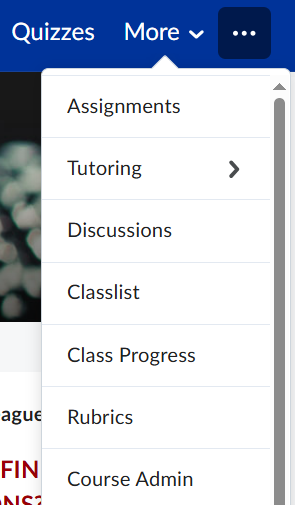
- In your D2L course, go to the More > Course Admin.
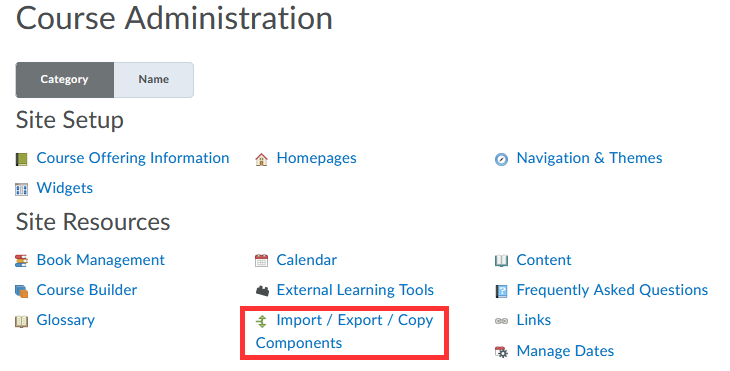
- Select Import/Export/Copy Components.
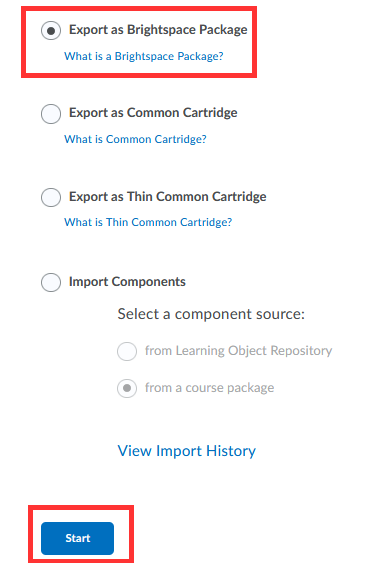
- Select Export as Brightspace Package > Start.
- Select Components to Export > Continue.
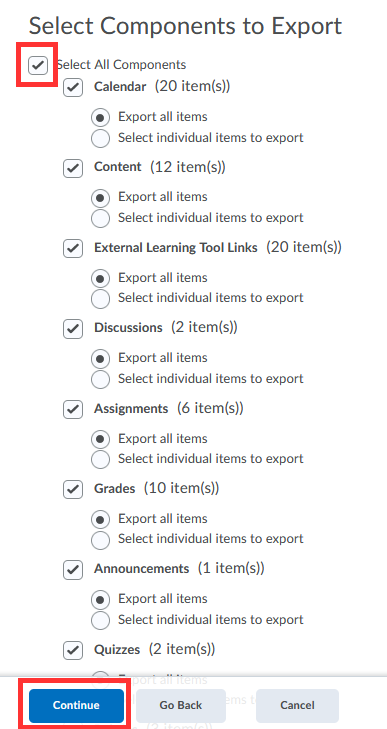
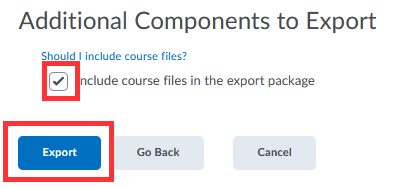
- Important! – Under Additional Components to Export, select Include course files in the export package > Export.
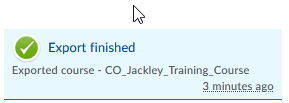
- The Export will start. You’ll be notified on the Updates Alerts icon in D2L when the export is ready to download (orange dot indicates new notification).

- Select Export Finished in the Updates Alerts to download the Export Package (zip).
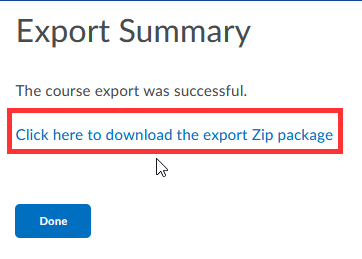
- Click to download the Export Package (zip).
- The zip file will initially be saved to your local computer’s Download folder.
Step 2: Save Your D2L Course Backup File to a Secure Location
Recommendations for storage:
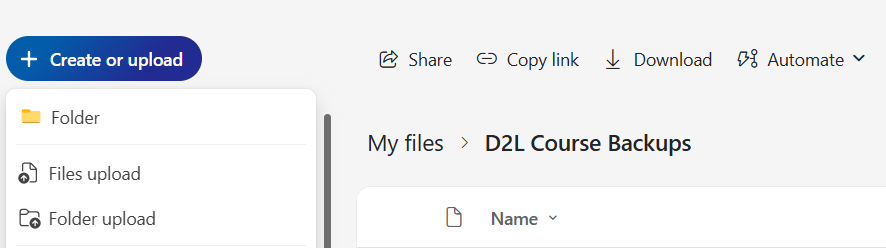
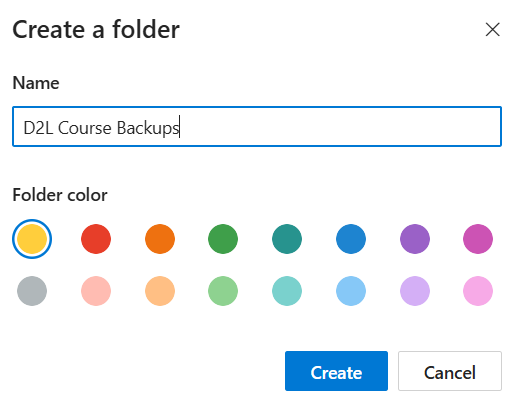
- It is recommended that you move this Zip file to a devoted folder labeled “D2L Course Backups”.
- Sometimes the zip file can be large in size, so saving the zip file to a cloud based storage would provide more storage space.
- As part of Microsoft 365 suite of applications, each instructor is provided a cloud based storage area called OneDrive
Access to M365 OneDrive
- You can access OneDrive by visiting Office.com and logging in with your regular credentials.
- Click on the Apps icon to discover all M365 suite of apps available to instructors. Select OneDrive.

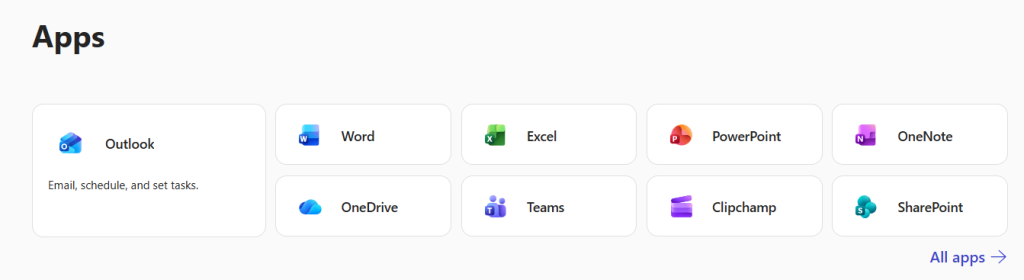
- Select My Files for your personal cloud storage area.
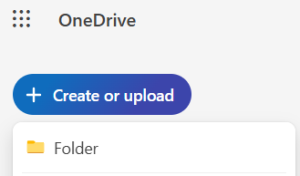
- Create a new folder. Under Create or Upload, select Folder.
- Name your Folder “D2L Course Backups”
- Upload your Zip file to this folder by selecting Create or Upload and Files Upload.