
Multi-Factor Authentication is required for SSC cloud-based services like Office 365, Microsoft Teams, and D2L Brightspace. What is MFA and why is it important? Multi-Factor Authentication enhances cyber security by requiring users to identify themselves by more than a username and password (which can be stolen). MFA requires an additional verification method such as a code to Microsoft Authenticator or a code sent to your mobile phone. You are likely already use MFA with your bank or credit card company.
STEP 1:
MOBILE PHONE
If following these steps on a mobile phone, begin by downloading the Microsoft Outlook app from Google Play Store or the Apple App Store.
COMPUTER
If following these steps on a computer, begin by opening an internet browser (Google Chrome, Firefox, Microsoft Edge, etc.) and go to https://outlook.com/.
In either case, you will attempt to login to Microsoft Outlook by entering your SSC email address, and clicking “Next”.
If you are a student your email address will end in @student.ssc.edu. If you are an employee your email address will end with @ssc.edu.
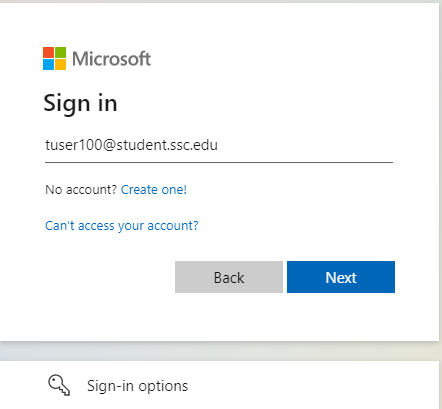
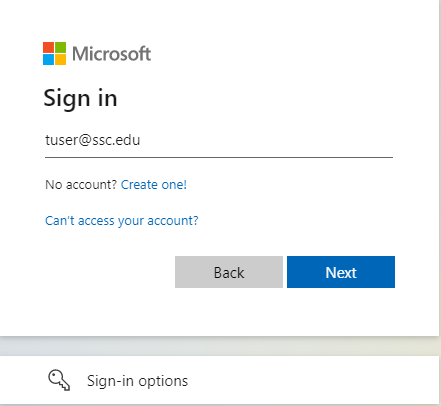
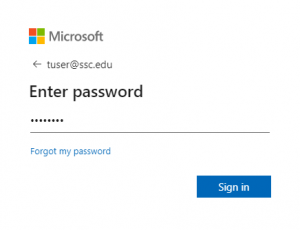
STEP 3: Enter in your SSC issued password and click on “Sign in”.
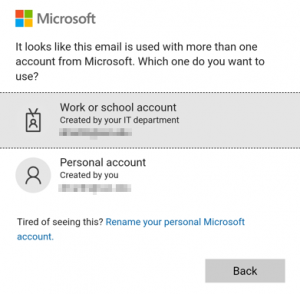
STEP 4: If you are prompted to select an account type, select “Work or School Account“.
STEP 5: At the “Let’s keep your account secure” screen, select “Next”.

STEP 6: You will now be prompted to download the Microsoft Authenticator app to your mobile phone from Google Play Store or the Apple App Store. Select “Next” once the installation is complete.

STEP 7: Complete the setup of your Microsoft Authenticator app on you mobile phone. Select “Next“. If prompted, select “allow notifications” and if prompted select “Work or School Account“.

Step 8:
MOBILE PHONE
If following these steps on your mobile phone, on the “Now pair Authenticator with your account” screen, click the link “Pair your account to the app by clicking this link“. When prompted “Open in Authenticator?“, select “Open“.
COMPUTER
If following these steps on a computer, use the Microsoft Authenticator app on your mobile phone to scan the QR code on your computers screen to connect your account. Once complete, return to your computer and select “Next“.


STEP 9:
Input code from the “Let’s try it out” screen into the Microsoft Authenticator app. A confirmation message will be given upon success.
STEP 10: It is now time to setup a second authentication method. Please select “Phone” from the list of options.
STEP 11: Please enter your phone number and choose “Text a code” as your second verification method. Select “Next“.

STEP 12: Enter the code you received by text into the box to verify your phone number. Select “Next“. A confirmation message will be given on the computer upon success.
STEP 11: You have successfully registered your device for MFA, select “Done”. These steps only need to be completed once, unless you change your mobile number. Now that you have registered your mobile device, a unique verification code will be generated each time you sign into a service or site that requires Multi Factor Authentication, e.g., D2L Brightspace, Office 365, Microsoft Outlook, and other college resources.

If you need additional assistance please contact the Helpdesk at (708) 225-5825 option 2 or go to http://www.thinkhelpdesk.com/ssc.