
Online appointment scheduling is here! You can now allow students to schedule office hours with you with just a click of a link. All meetings will appear on your Outlook calendar. If you choose to meet with students virtually, a Microsoft Teams meeting link will be created and sent automatically to the student on your behalf.
STEP 1
Login at Office.com using your SSC username, and network password.
STEP 2
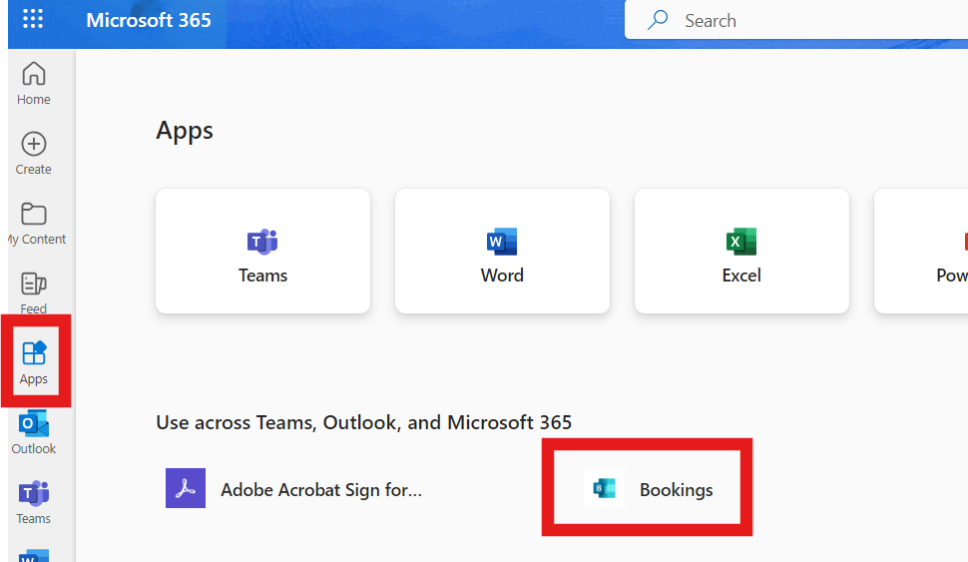
Select the “Apps” icon from the navigation bar on the left. If “Bookings” is listed on your Microsoft 365 Apps page, click to open and proceed to STEP 5 of this guide.
STEP 3
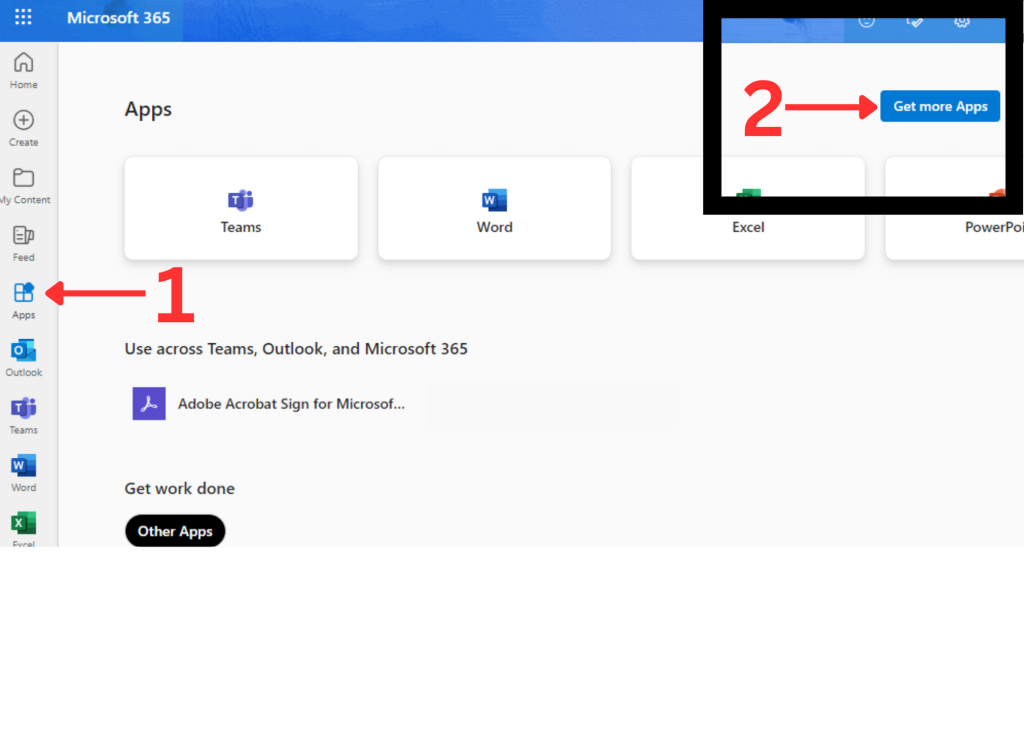
Click on the Apps link from the left menu, and navigate to the “Get More Apps” in the upper right-hand corner of your browser window on a desktop or laptop.
STEP 4
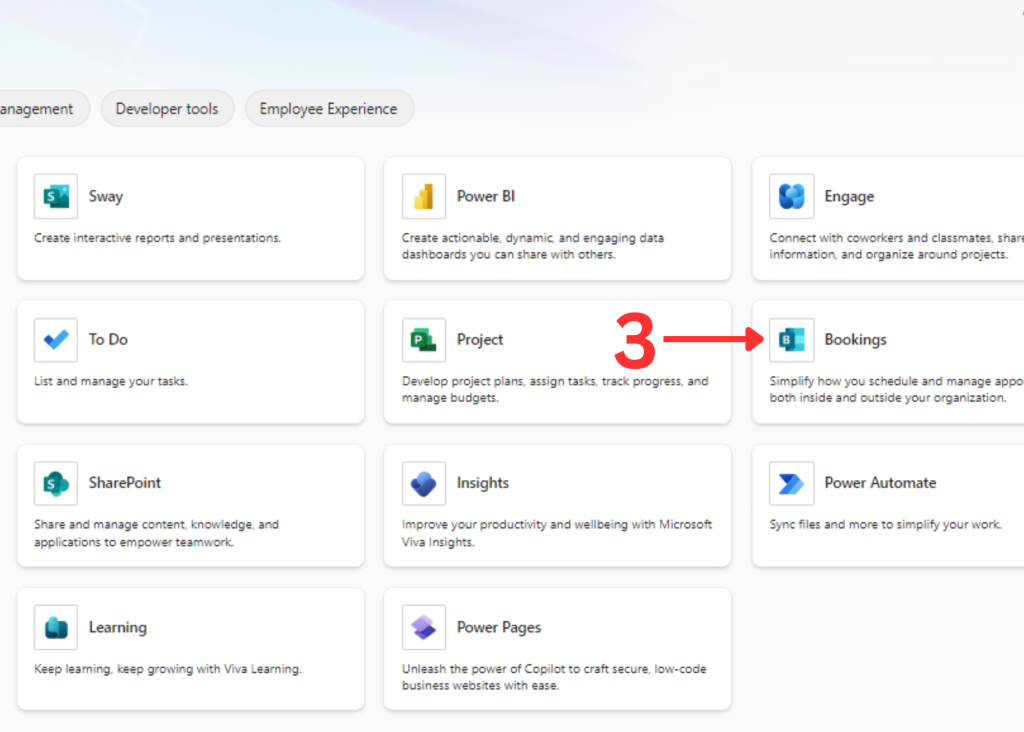
On the next screen, click on the “Bookings” app to add it to Office 365.
STEP 5
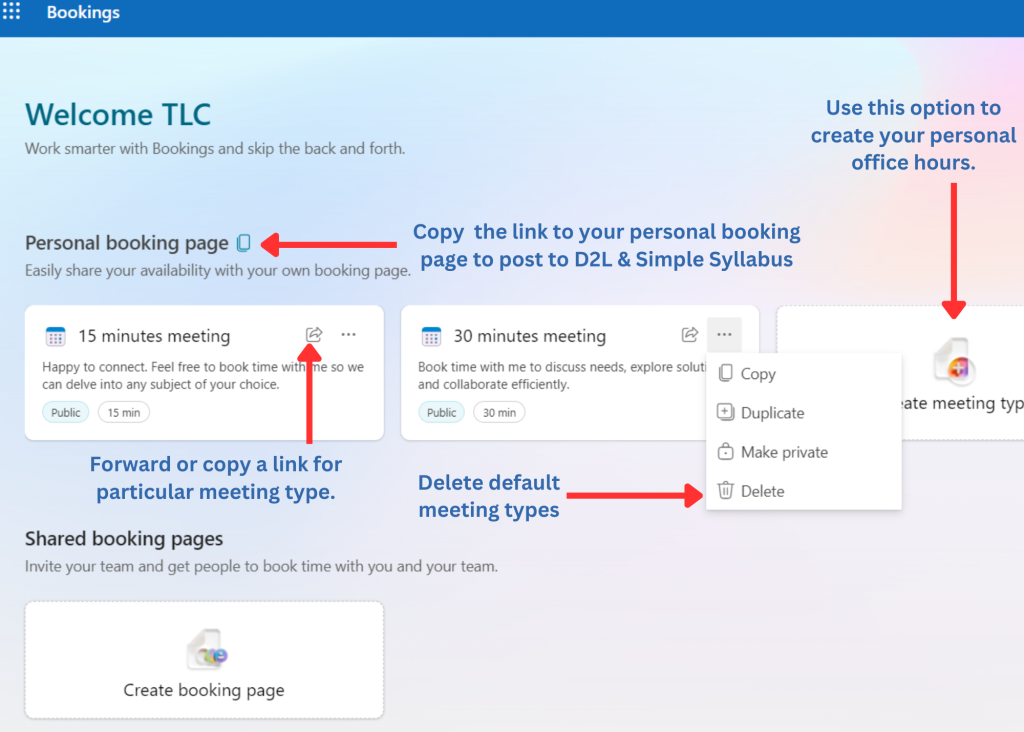
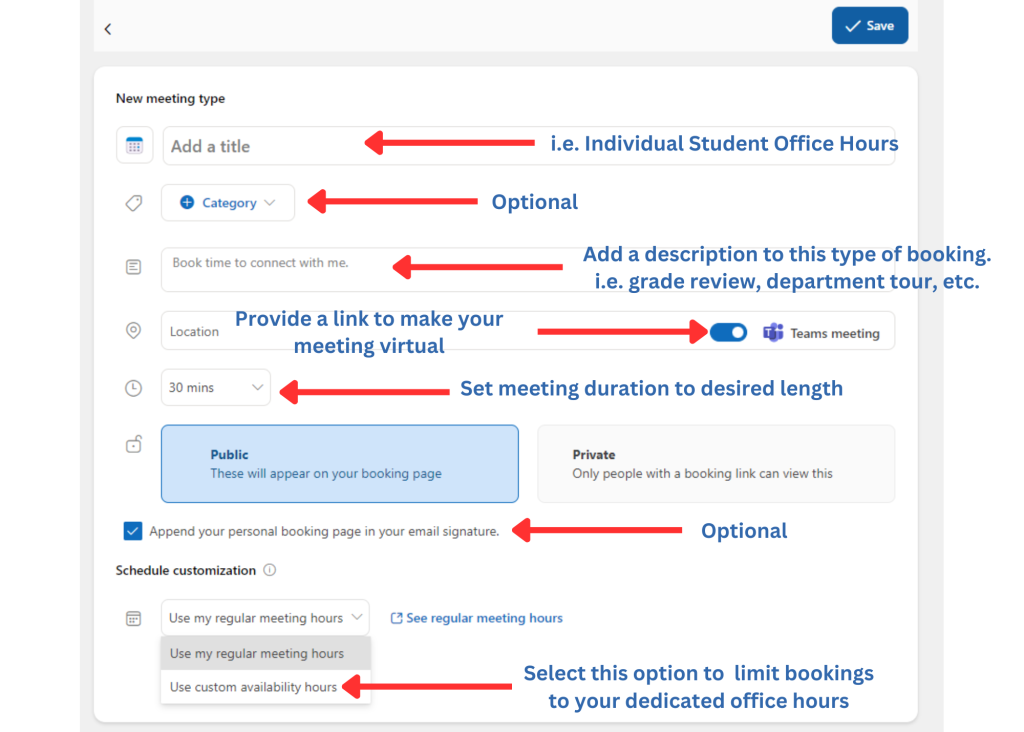
Follow the prompts on the images below to create a new meeting type.
Be sure to copy the link to your “Personal Booking Page” or the unique meeting you created especially for your students and add it to your D2L course shells and Simple Syllabus so that they can easily book virtual office hours with you online.
STEP 6
You can restrict the ability of your schedule to just your posted office hours by setting “custom availability hours” for the meeting type you wish to share.
Need help more help? Email us at ssconline@ssc.edu.